01
Create a Zapier MCP server
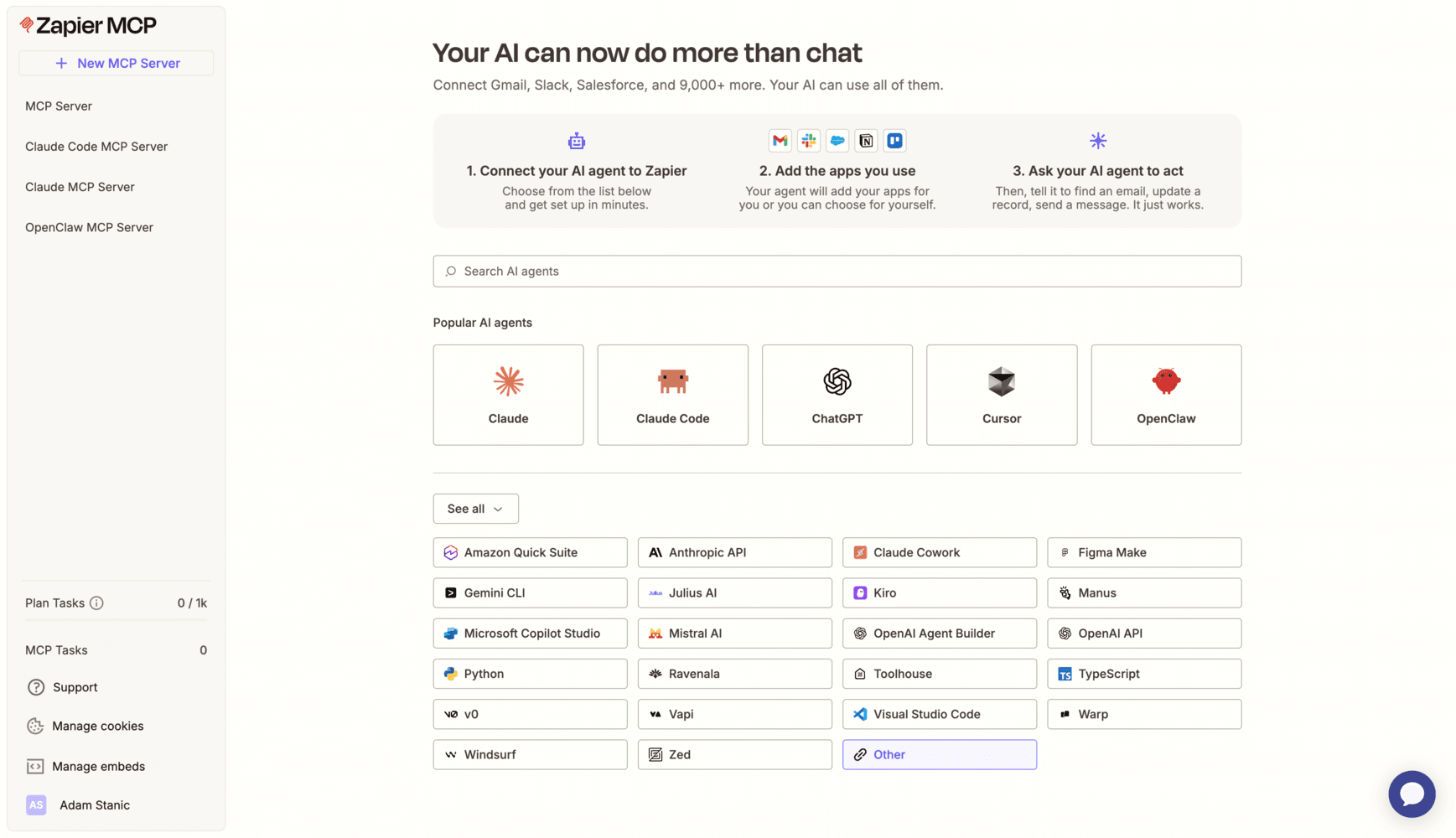
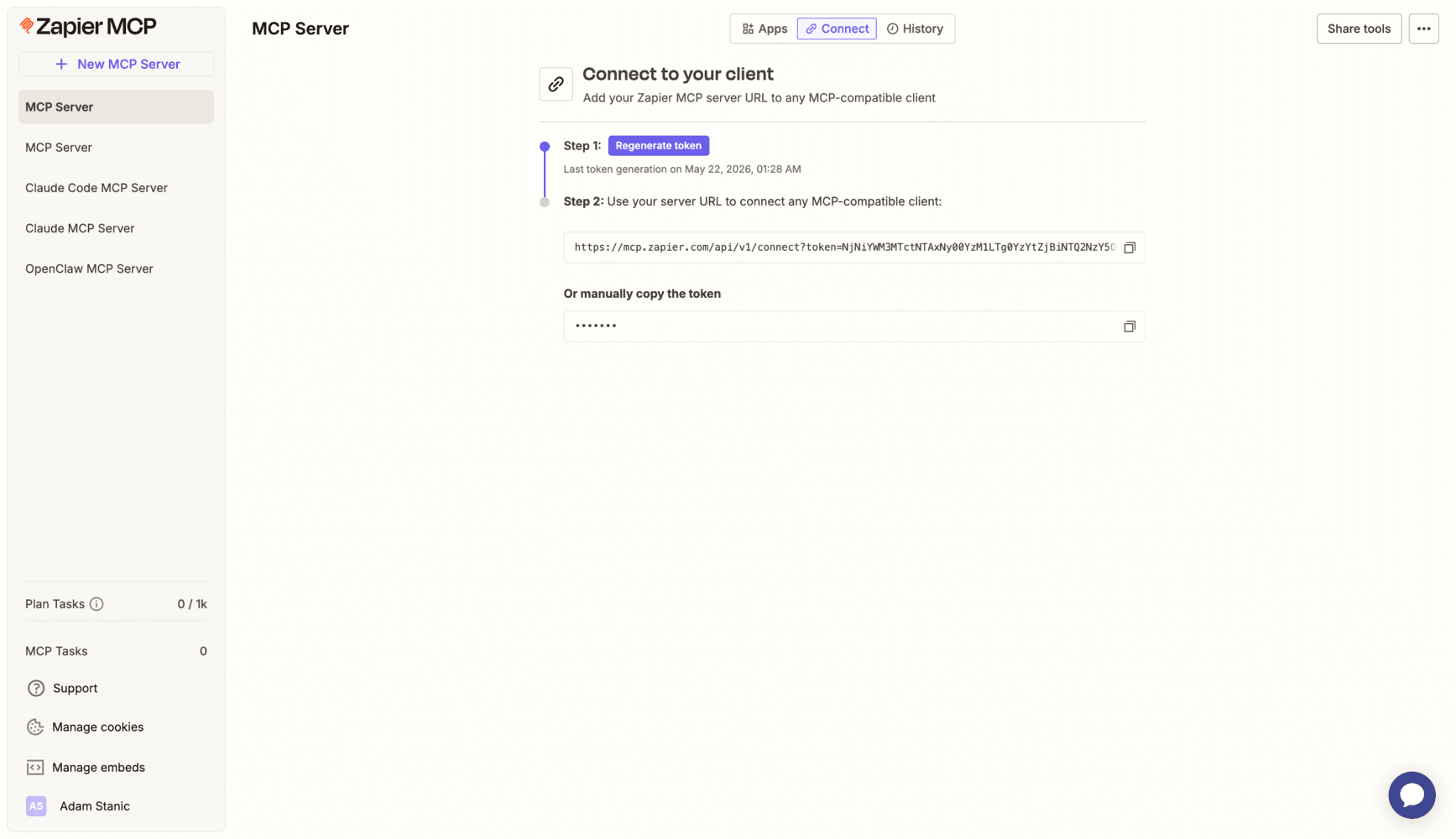
Open Zapier MCP, click New MCP Server, and choose the MCP client type. For Kognita, choose Other so Zapier gives you a generic MCP server URL that can be pasted into a custom MCP connection.
 kognita
Custom MCP
Custom MCPs let a Kognita project connect to any approved MCP-compatible server. Your agent already has semantic code intelligence from Kognita; custom MCPs add the external systems, app actions, and operational tools it is allowed to use.
Kognita's built-in integrations cover codebase intelligence, Jira, and database access. Custom MCPs extend the same managed agent runtime to any MCP server your team approves. This matters for developers and for customers: the same assistant can understand the code, explain the system, and reach the connected tools that surround it.
1
Open a project, go to MCPs, and add a public HTTPS MCP endpoint using Streamable HTTP or SSE.
2
Write agent guidance that tells Kognita exactly what the MCP provides and when to use it.
3
Refresh the project environment so the managed agent can discover and use the new MCP tools.
4
Use a vendor-hosted MCP or run your own MCP server as long as it is reachable from Kognita over public HTTPS.
If you host your own MCP server behind a firewall, reverse proxy, API gateway, or cloud security group, allow inbound HTTPS traffic from the same Kognita egress IP shown in the dashboard database setup: 35.254.19.175.
Kognita custom MCP URLs must still be public HTTPS endpoints. The allowlist is for teams that expose a controlled endpoint publicly but restrict which source IPs can reach it.
Zapier documents MCP support for 8,000+ app connections and 30,000+ actions. In Kognita, that means a project agent can keep using semantic codebase context while also reaching approved Zapier tools, such as calendar lookup, Slack updates, CRM records, spreadsheet rows, or ticket actions.
Open Zapier MCP, click New MCP Server, and choose the MCP client type. For Kognita, choose Other so Zapier gives you a generic MCP server URL that can be pasted into a custom MCP connection.
In the Zapier MCP Apps tab, add a tool and search for the app you want. This example searches for calendar tools and selects Google Calendar.
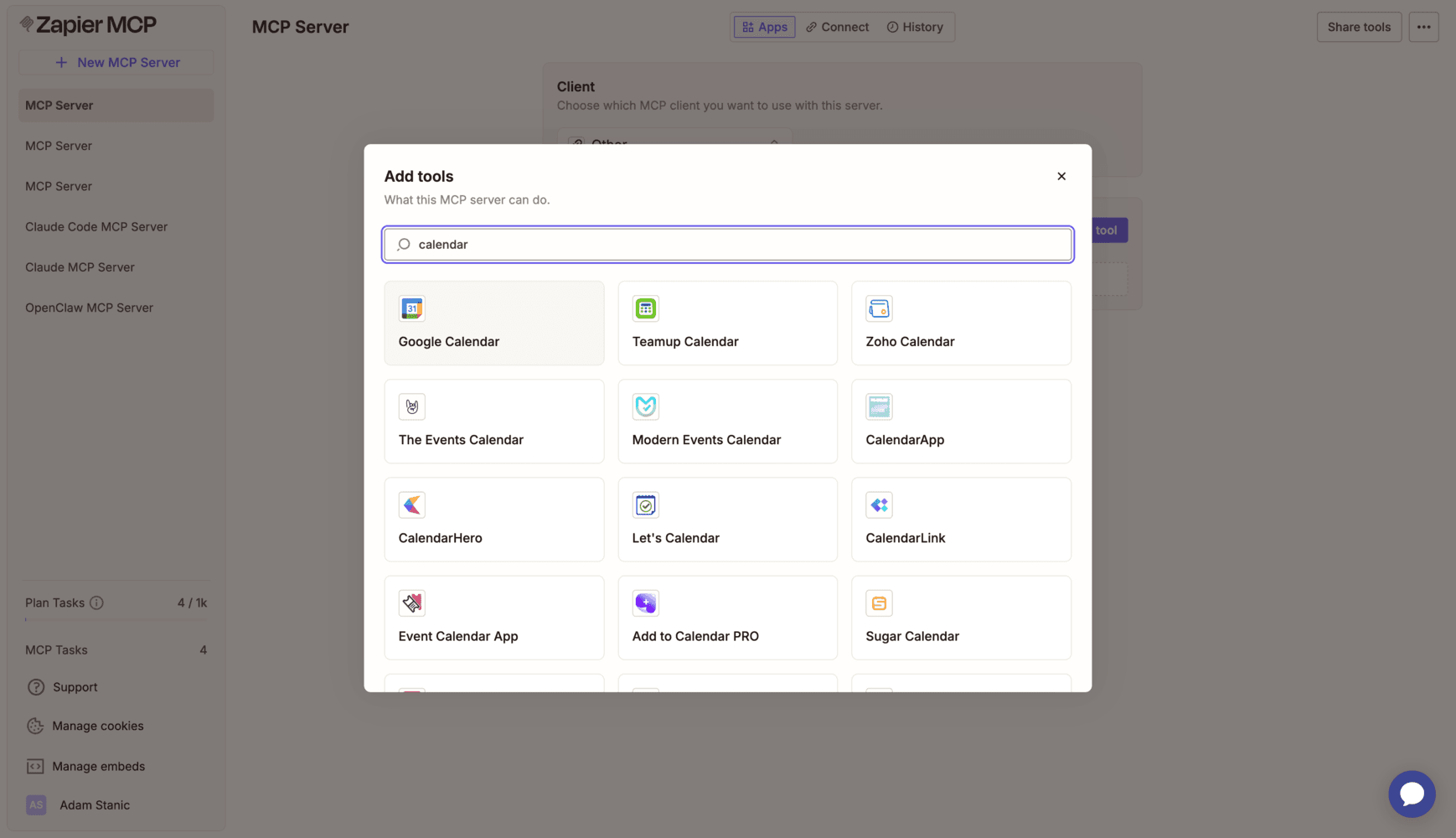
Select only the tools the Kognita agent should be able to use. You can add all available tools, only search tools, only action tools, or specific actions one by one.
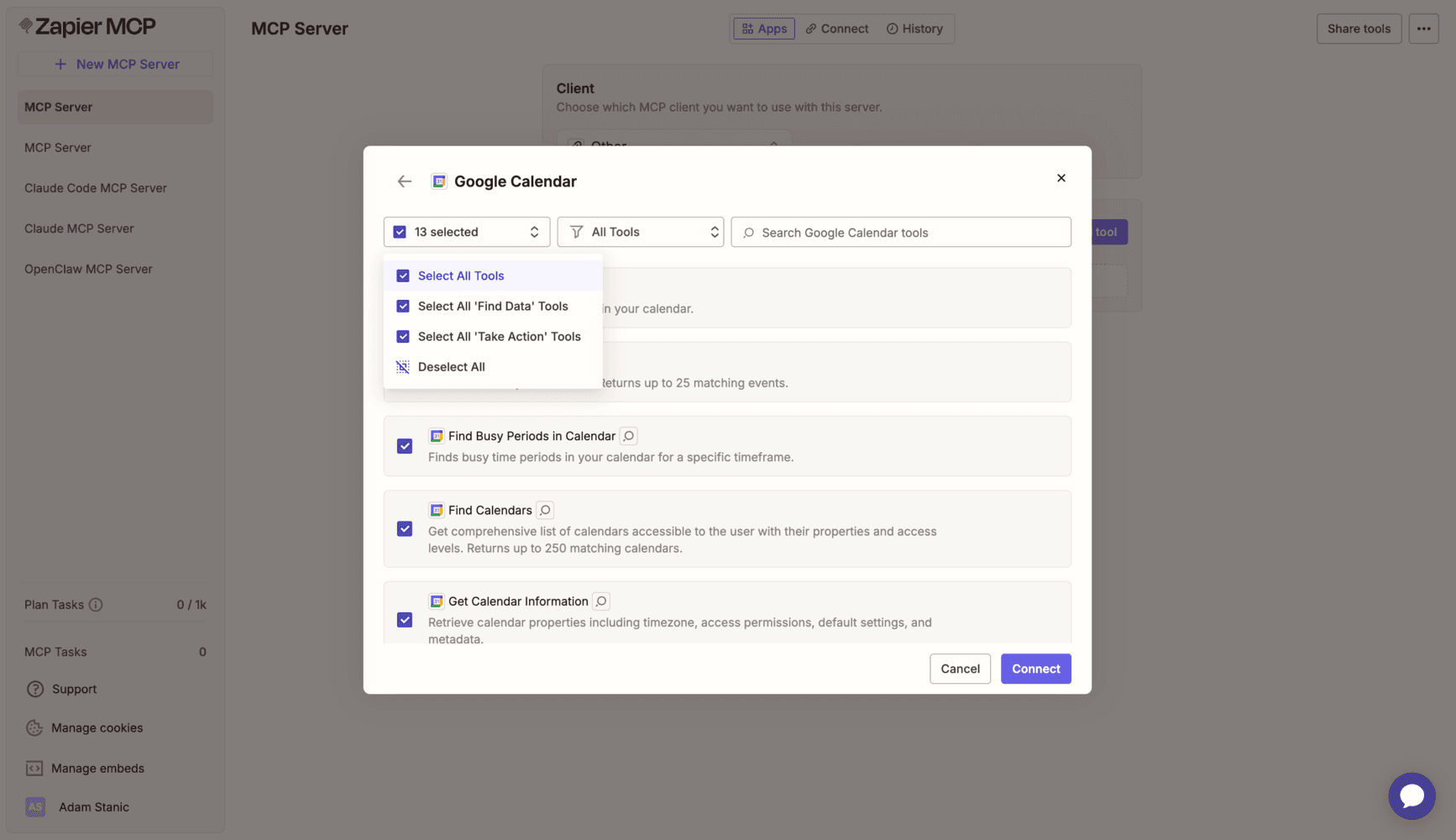
Choose the app account Zapier should use, then add the selected tools to the MCP server. The Kognita agent will only see the Zapier tools you configured for this server.
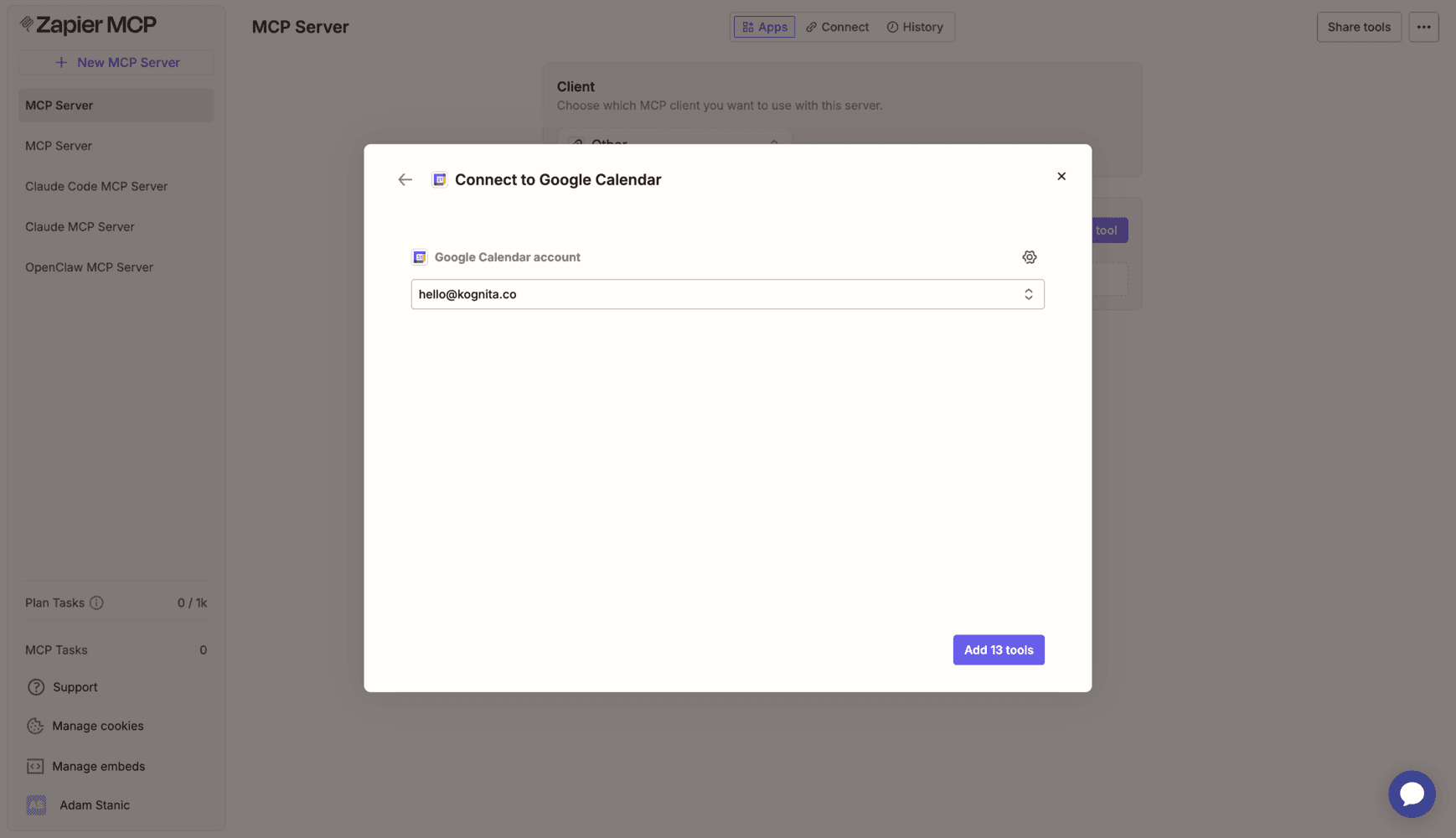
Open the Connect tab in Zapier MCP and copy the server URL. Treat this URL like a secret because it authorizes access to the tools configured on that Zapier MCP server.
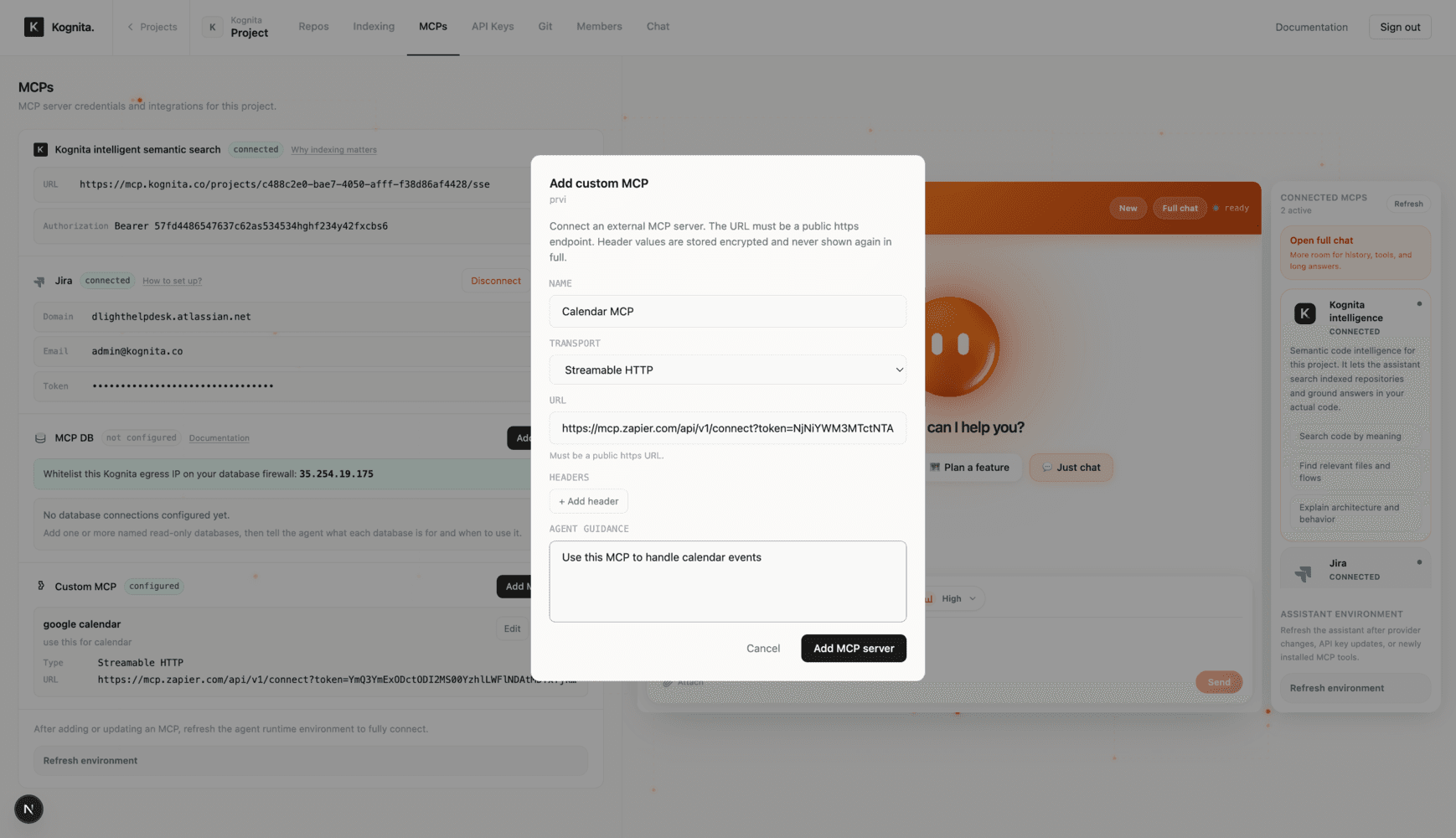
In your Kognita project, open MCPs, click Add MCP server, choose Streamable HTTP, paste the Zapier server URL, and add clear agent guidance such as what the calendar tools are for.
After saving the custom MCP, refresh the project agent environment. The assistant can then use the configured external tools alongside Kognita semantic code intelligence, Jira, and database context.
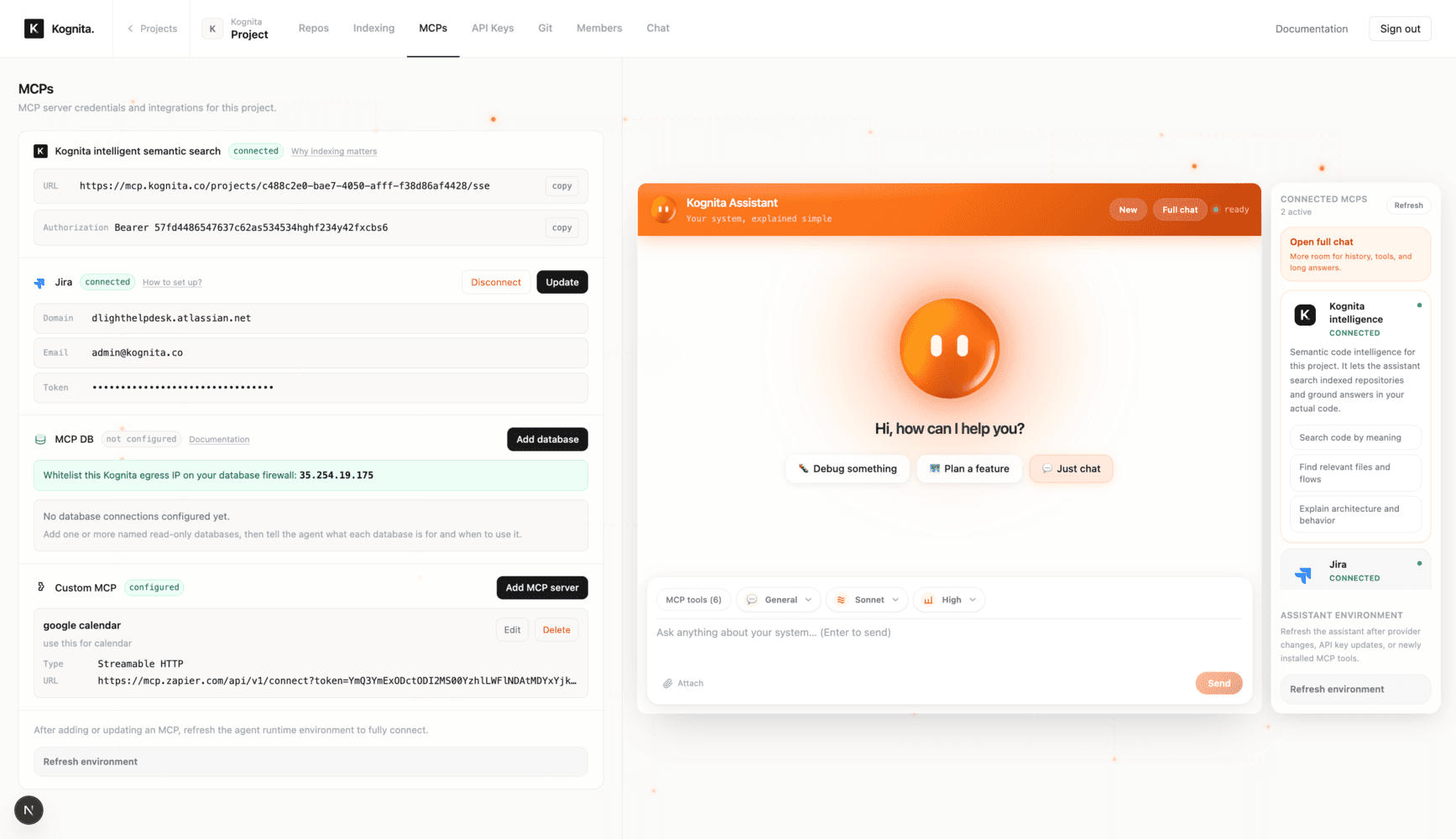
A custom MCP server is an external Model Context Protocol server that you attach to a Kognita project. It lets the managed project agent use approved tools from that server while still grounding answers in Kognita semantic codebase intelligence.
The Kognita MCP lets outside tools like Claude Code, Cursor, Codex, and Windsurf query Kognita codebase context. A custom MCP works in the opposite direction: it lets the Kognita project agent connect to an approved external MCP server such as Zapier.
Yes. Zapier MCP provides a server URL for MCP-compatible clients. In Kognita, add that URL as a custom MCP using Streamable HTTP, describe what the tools are for, save it, and refresh the agent environment.
Kognita supports public HTTPS custom MCP endpoints using Streamable HTTP or SSE. That can include hosted MCP servers from vendors, internal MCP services exposed safely over HTTPS, and automation platforms like Zapier MCP.
Header values entered for a custom MCP are stored encrypted and are not shown again in full. Use least-privilege credentials and rotate external tokens whenever access changes.
If your firewall, reverse proxy, or gateway restricts inbound traffic, allow inbound HTTPS access from the Kognita egress IP 35.254.19.175.